Technical Difficulties

If you have any issues with the features on this website, this may be due to the browser you are using.

Please note: This site only supports the following web browsers:

Internet Explorer will not work on our Virtual Venue websites. If you are using IE, you must download one of the browsers we recommend above.
Mozilla Firefox version 80 or newer may work, however we do not offically support or recommend using this browser.

Troubleshooting

  • If you are experiencing issues with joining a Video Call, try logging out and logging in again.
  • If you are having problems with your internet connection whilst in a Video Call, try turning off your camera for a little while to see if this improves it.
  • Take a look at our Browser Check and Help Videos sections below for solutions to common problems.

Contact us

If you have tried using one of the suggested browsers above and are still experiencing issues, please contact us by email at This email address is being protected from spambots. You need JavaScript enabled to view it.. Please explain in as much detail the issues you are experiencing.
Help Videos

These videos will help you to use the virtual venue website.
Please take the time to look through them if you are struggling with something.
If you need assistance with something not covered in these videos, or you're still struggling after watching them, please contact our support team using the details provided above

If you're having problems with joining the video calls, the problem may be with the internet browser you are using - this video explains more about the issue and how to solve it.


To see how you can find Chrome and Edge browsers on your computer, please watch the video below.

This video will take you through the process of logging in and joining the video training step-by-step.

If you're using Chrome or Edge and you still can't see or hear anyone on the video call, please contact our support team who will assist you, and ask you to pass some information to your organisation's IT Team.

This issue is usually caused by IT Networks blocking our site's video elements, so in the meantime you can try:

  • Changing the Network/Wifi Connection you are using if possible,
  • Disconnecting from your VPN if you are using one, or
  • Trying to access the course from a different device if one is available, such as a mobile or tablet

  • Note: Please don't use your mobile's data to connect to the course as this could cost you lots of money in extra data charges!

    Microphone and Camera settings are set in your Browser. This video will walk you through how to change them to allow you to turn on your Microphone and Camera in the Video Calls.

    There are lots of buttons on the screen and it may not be obvious what they all do - watch this video to see a brief description of each one

    You may need to share a Powerpoint presentation during your sessions, and this video will show you how to do this, and how to avoid a common problem with minimising your presentation beforehand.

    If you're struggling to send direct messages to other users or your course coordinator, take a look at this video which explains how to use the DM system

    If you're not sure how to use the discussion tab, this video will explain how to use it, and how to open it if you are a user with a small screen

    This video explains what all of the whiteboard controls do and how you can use them.

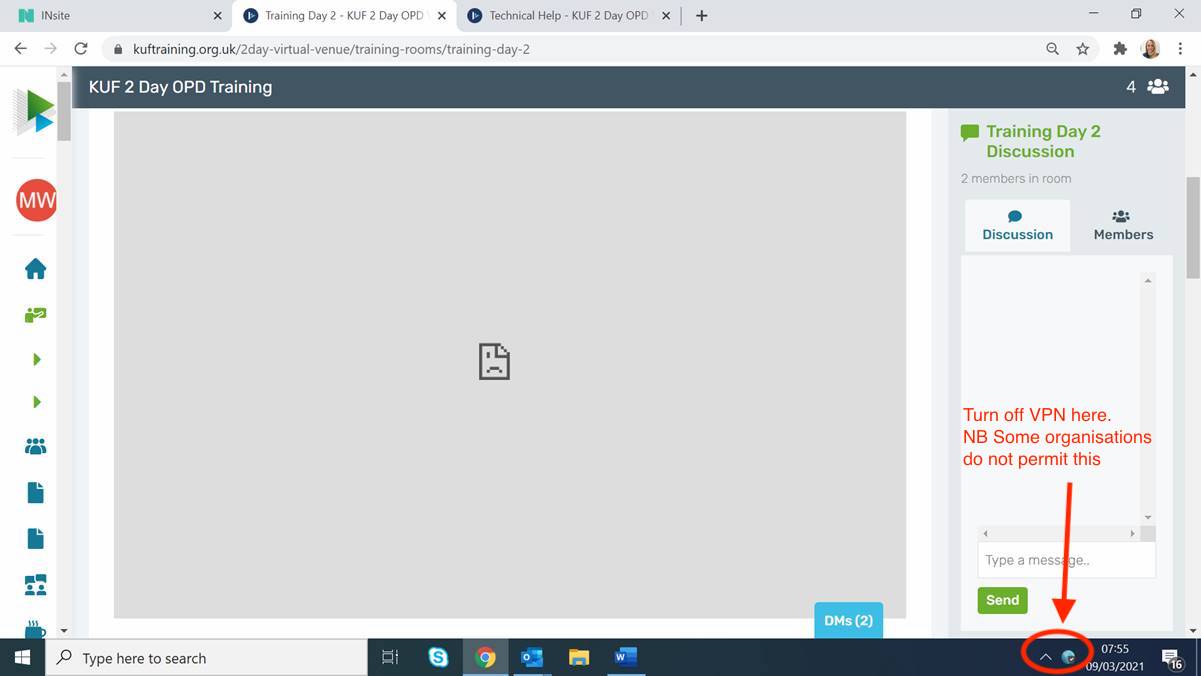
    You might be using a VPN to connect to your organisation's network. This can sometimes interfere with your connection to Virtual Venue.

    Please try disabling your VPN and reconnecting to a video call to see if your issue is fixed. This screenshot below shows where you can turn off your VPN, although this may vary for each user.